Skip to content

Everyday Git,
on one map.

Oak is a desktop Git client for browsing history, comparing branches and staging changes. Each stop below is something it does. Pick one.

Download Uses your installed Git · Windows and Linux

Oak is a desktop app for Windows and Linux. Open this page on your computer to download it.

Oak features, by line

Select a stop to see what it does.

Back to the map

Compare without checkout

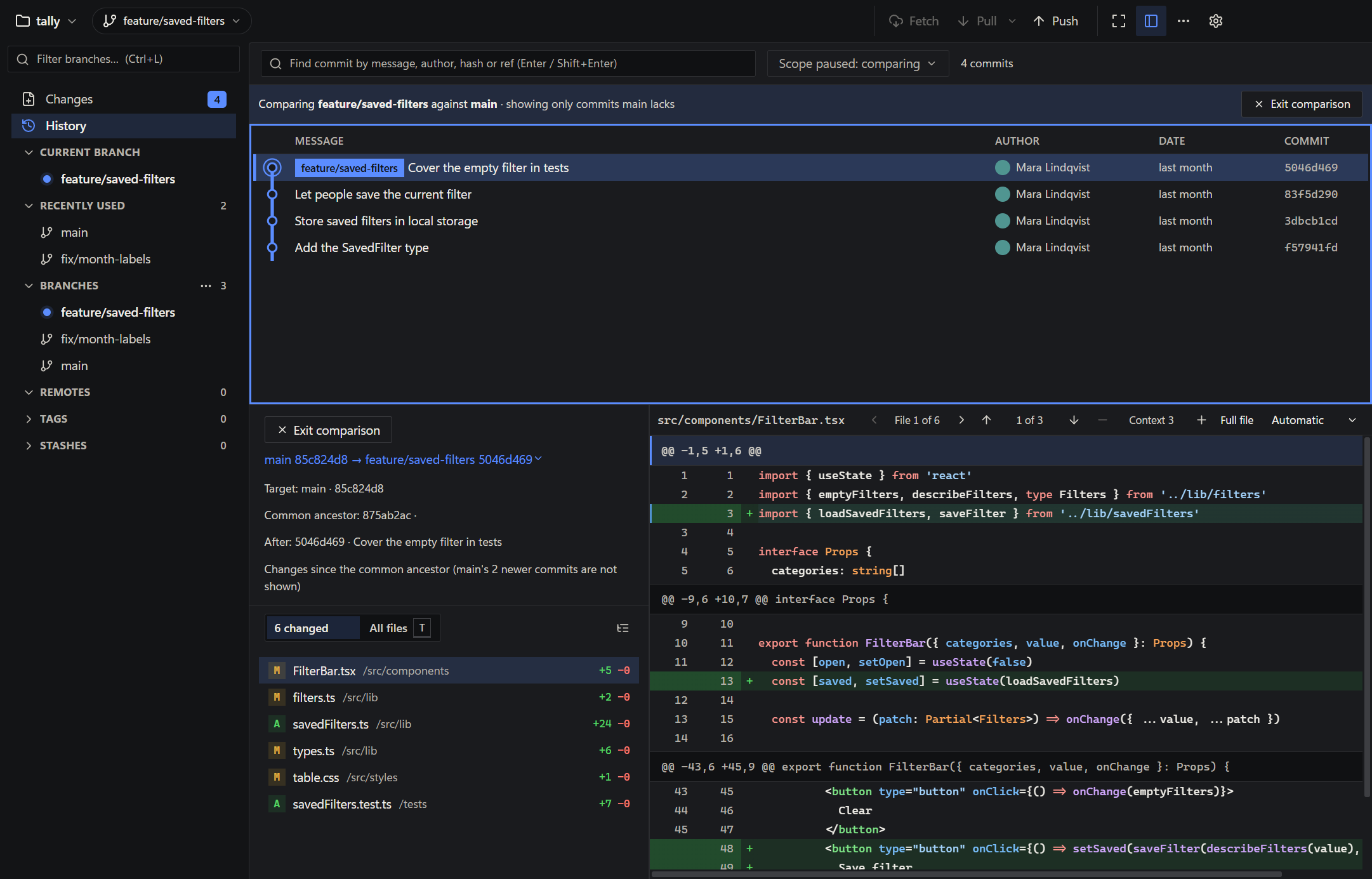
Review what a branch introduced since it branched from its target. Select an earlier commit to review the branch at that point.

Your working tree stays in place while you compare.

  1. Select a target: main, a release branch or another feature branch
  2. Open a changed file to read its diff beside the history
  3. Step back to an earlier commit to see the branch up to that revision
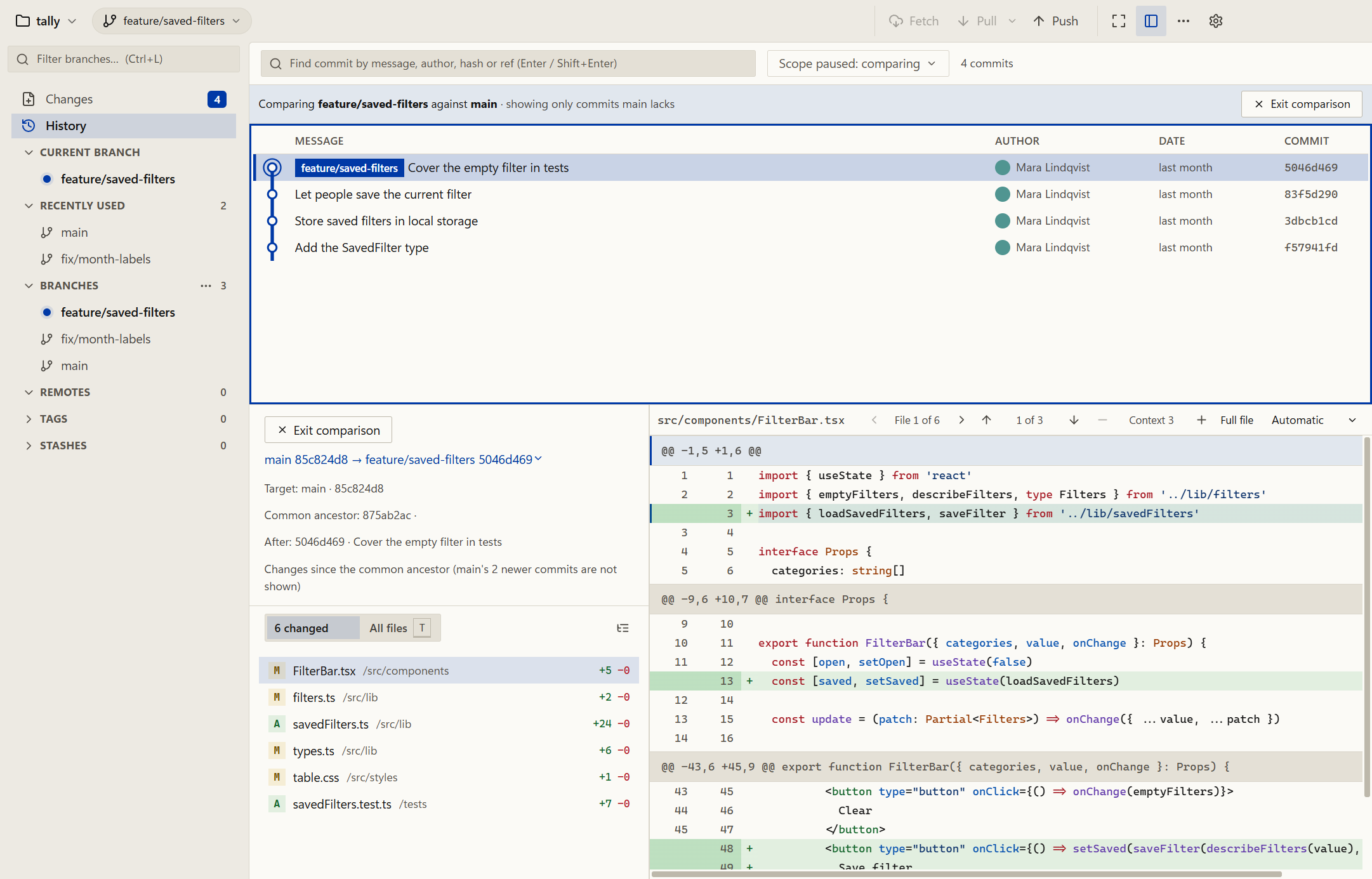
Oak's branch comparison with the changed files list and a diff, in Oak's light theme.
A feature branch compared with main, in a synthetic project.
Back to the map

History scope

Show only the current branch's own commits, without the default branch's history. Switch to the full ancestry, or add a target branch, from the History scope menu.

  1. Only this branch's own commits
  2. The full ancestry
  3. A target branch added to the view
Back to the map

File history

Choose "Show file history" from a file's menu, or from the command palette, to filter the History graph to the commits that touched that file. Stepping through them shows only that file's diff.

  1. Open a file's menu, or the command palette
  2. Choose Show file history
  3. Step through the commits that touched it, each showing only that file's diff
  4. Press Escape to return to all commits
Back to the map

Blame

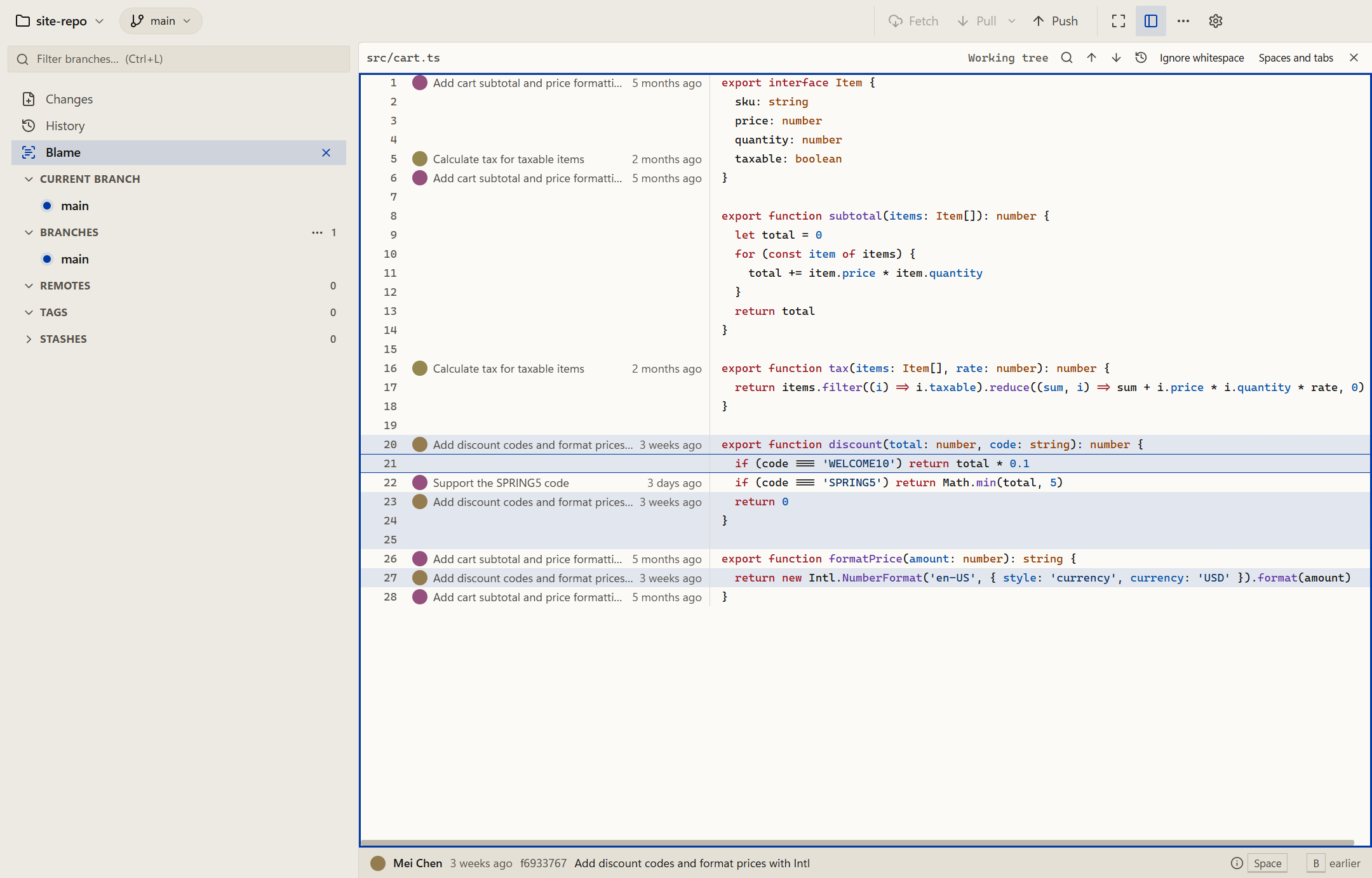
See who last changed each line. The gutter names each block's commit by subject and age, and a footer shows the commit for the line under the cursor.

  • Ctrl3Open Blame
  • BStep back to the version before a line's commit
  • /Find in the file
  1. Open Blame from a file's menu or the command palette
  2. Press B to see the file as it was before a line's commit, and Backspace to return
  3. Press Enter to open that commit in History at the file and line it changed
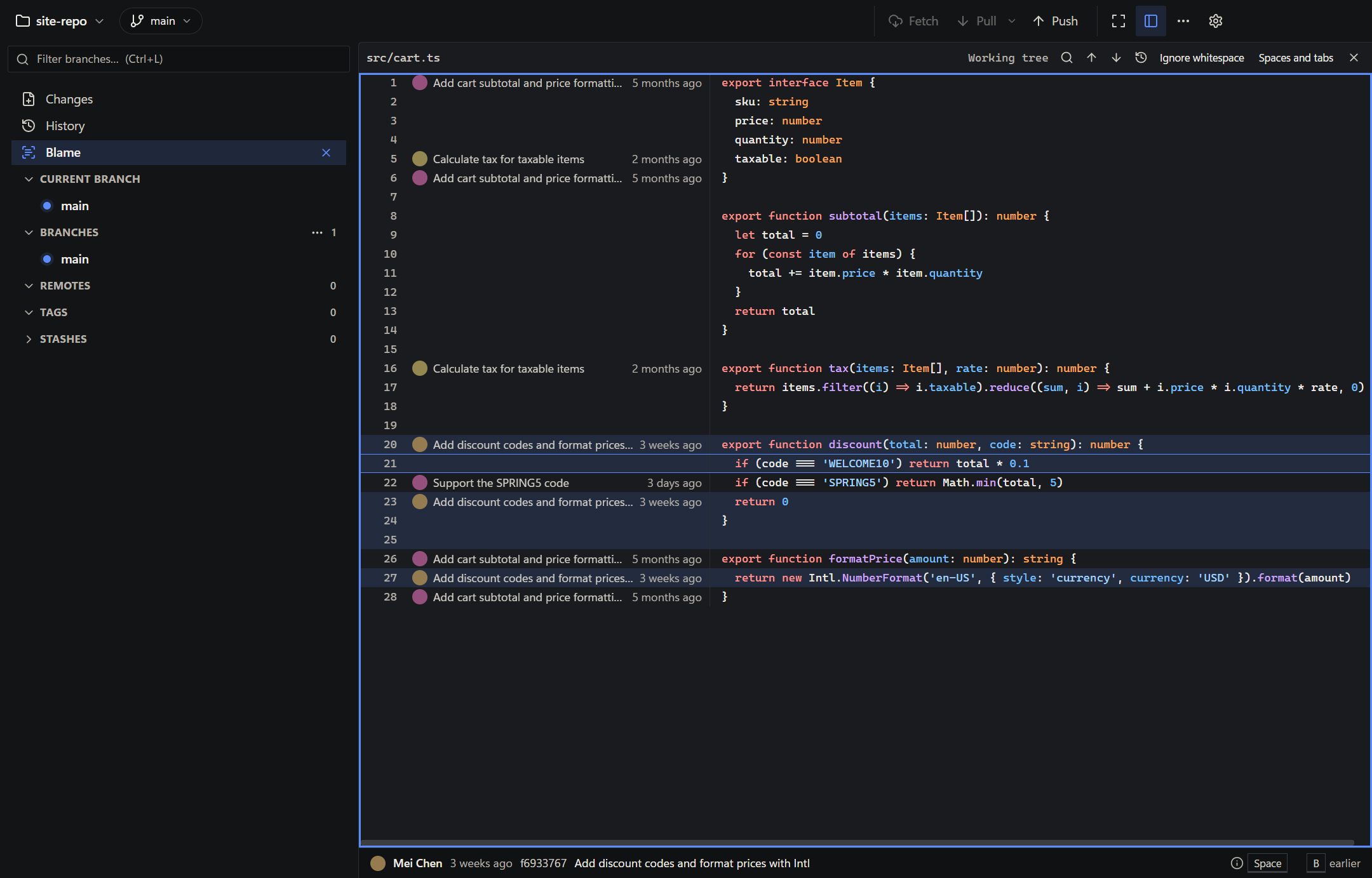
Oak's Blame view with each block's commit beside the code and the cursor line's commit in the footer, in Oak's light theme.
A file in a synthetic project, blamed in the working tree.
Back to the map

Stage lines

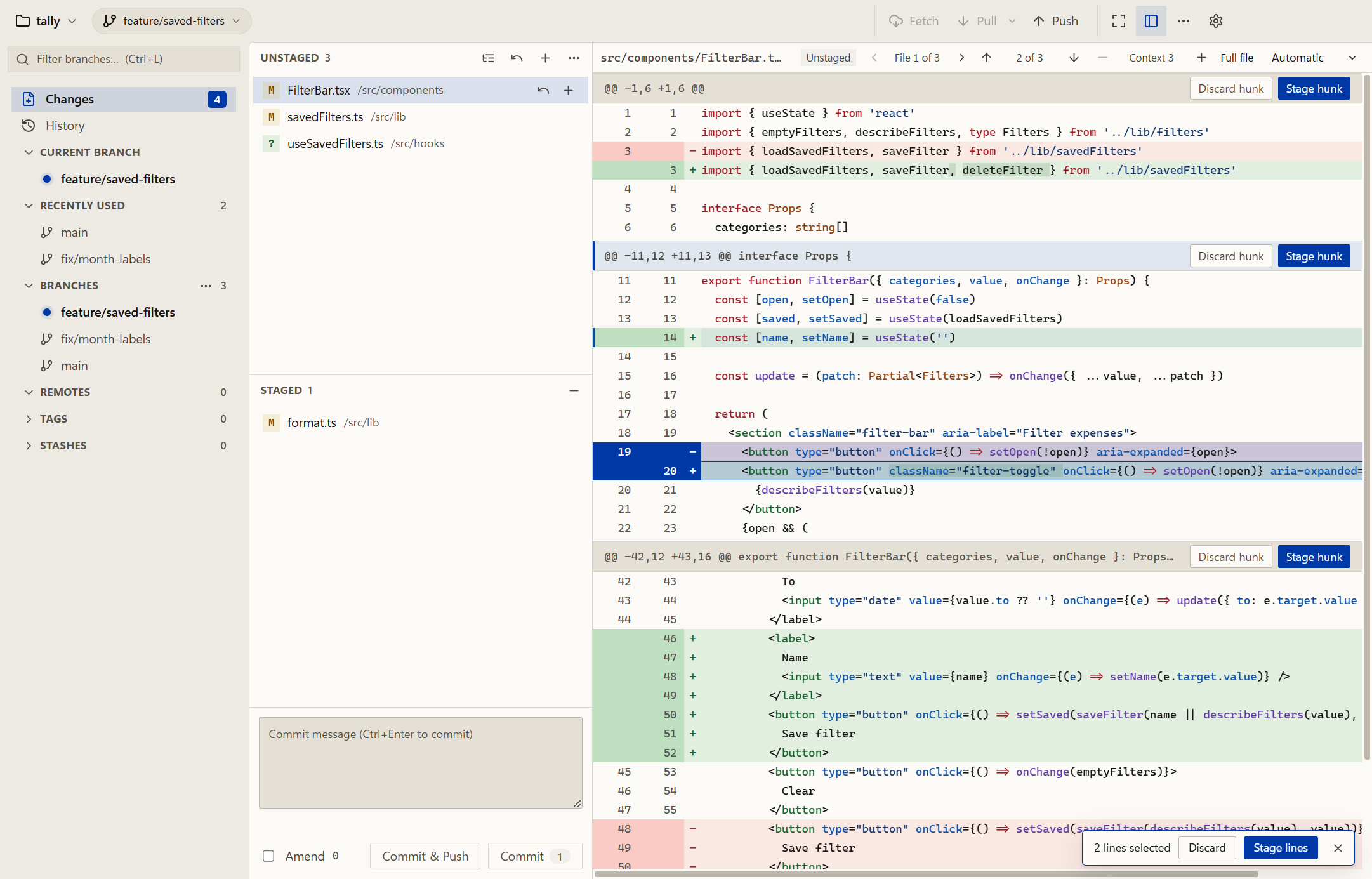
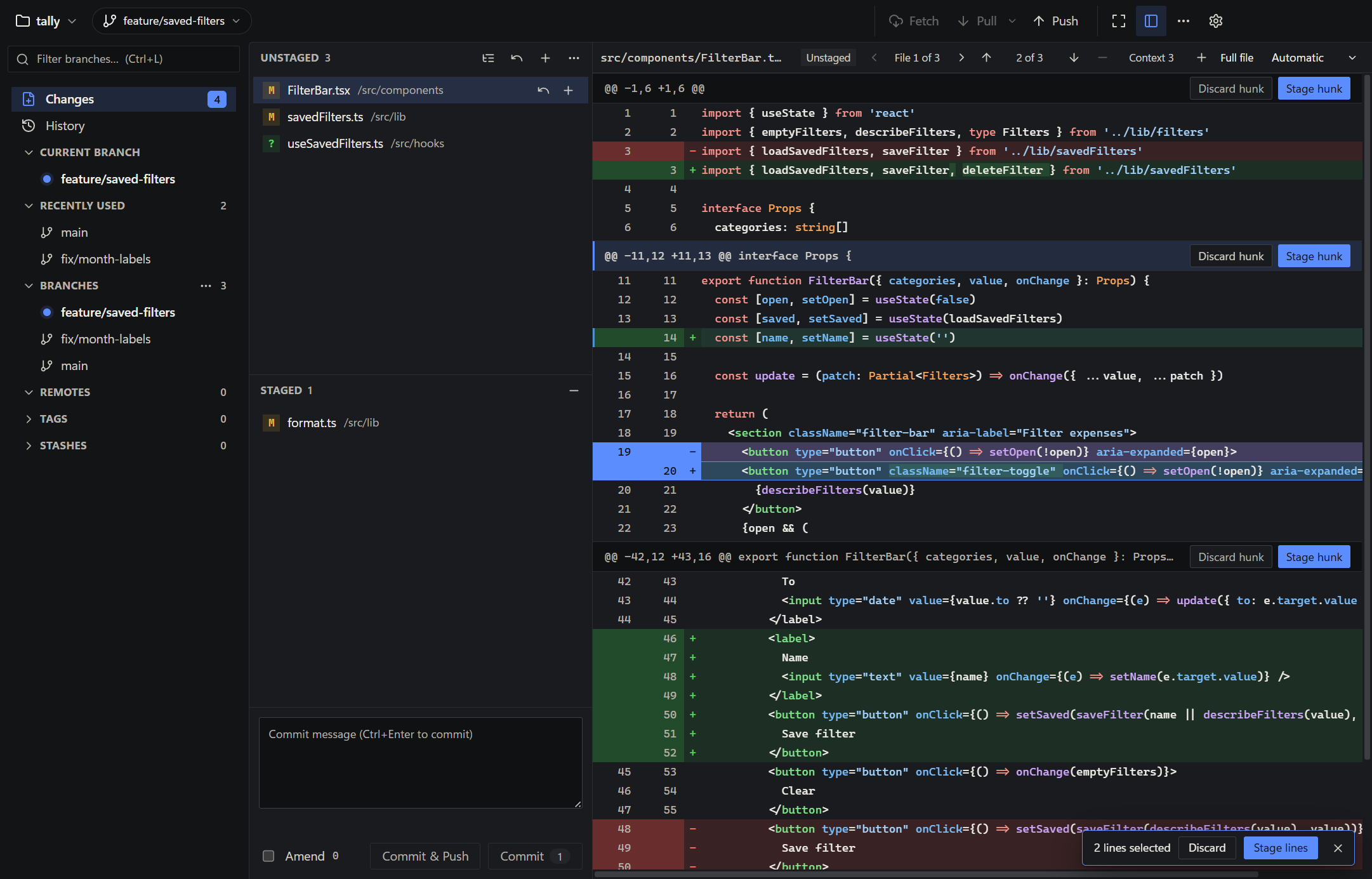
Select the changes to include in a commit. A click selects exactly the line shown, and the remaining changes stay unstaged.

Review staged and unstaged changes beside your commit message. If you commit with nothing staged, Oak asks whether to stage the changed files first; new files are included only if you tick the box.

  • SpaceToggle a line
  • Shift↓Extend the selection
  • EnterStage or unstage
Oak's Changes view with two diff lines selected and a Stage lines button, in Oak's light theme.
Two lines selected, ready to stage. The rest of the hunk stays unstaged.
Back to the map

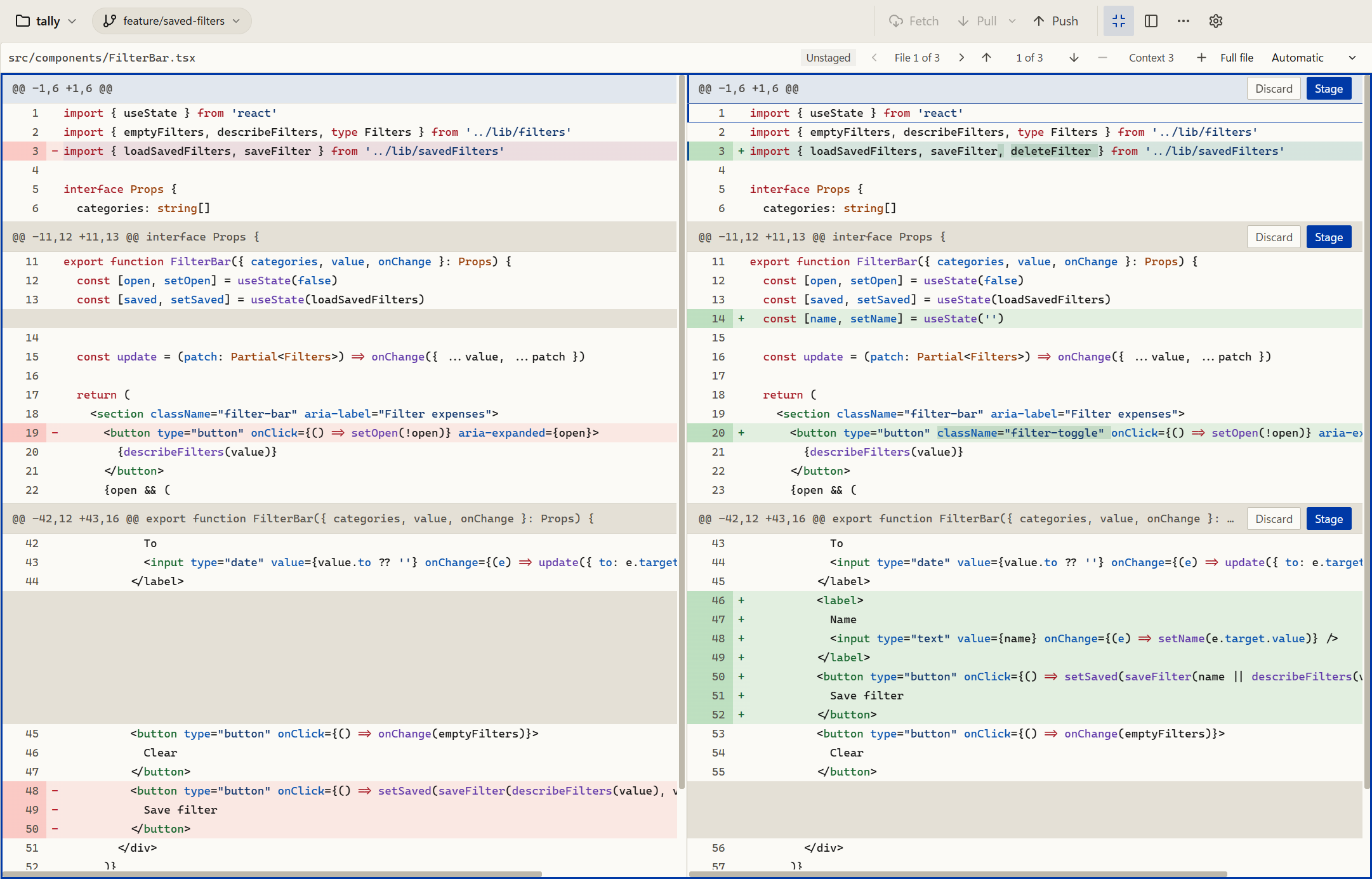
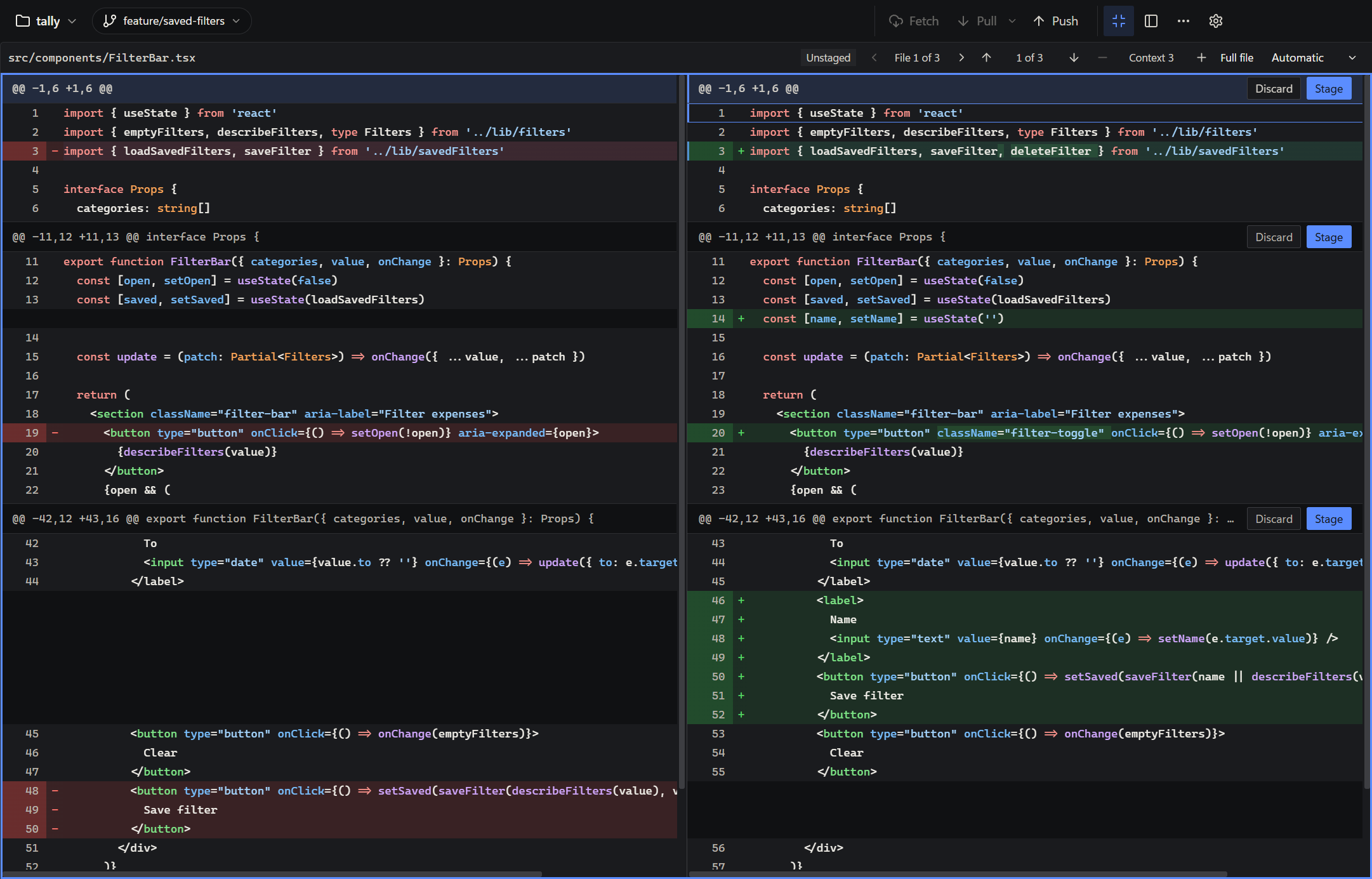
Inline or side by side

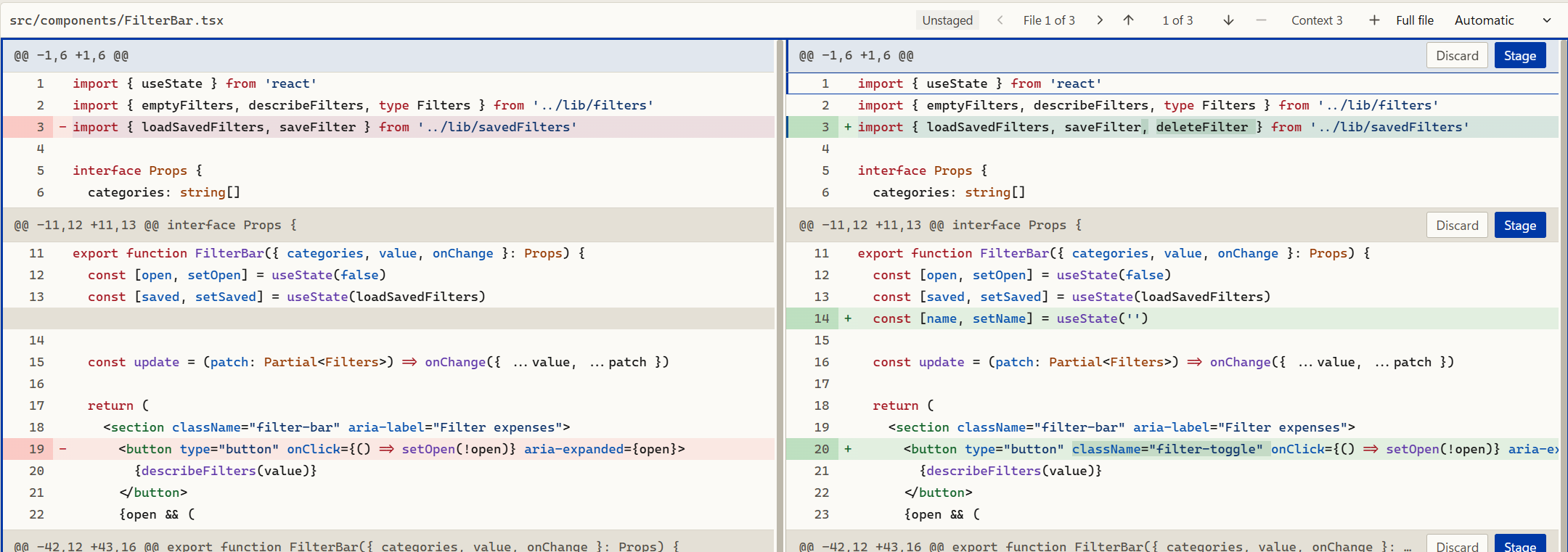
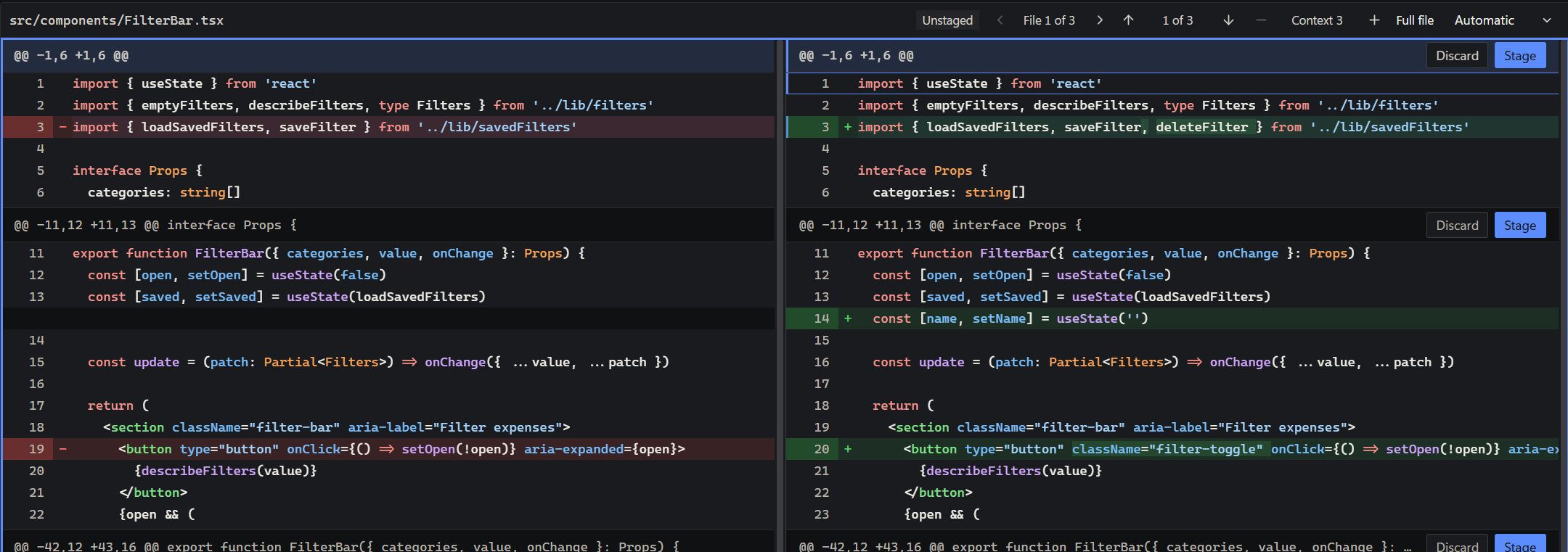
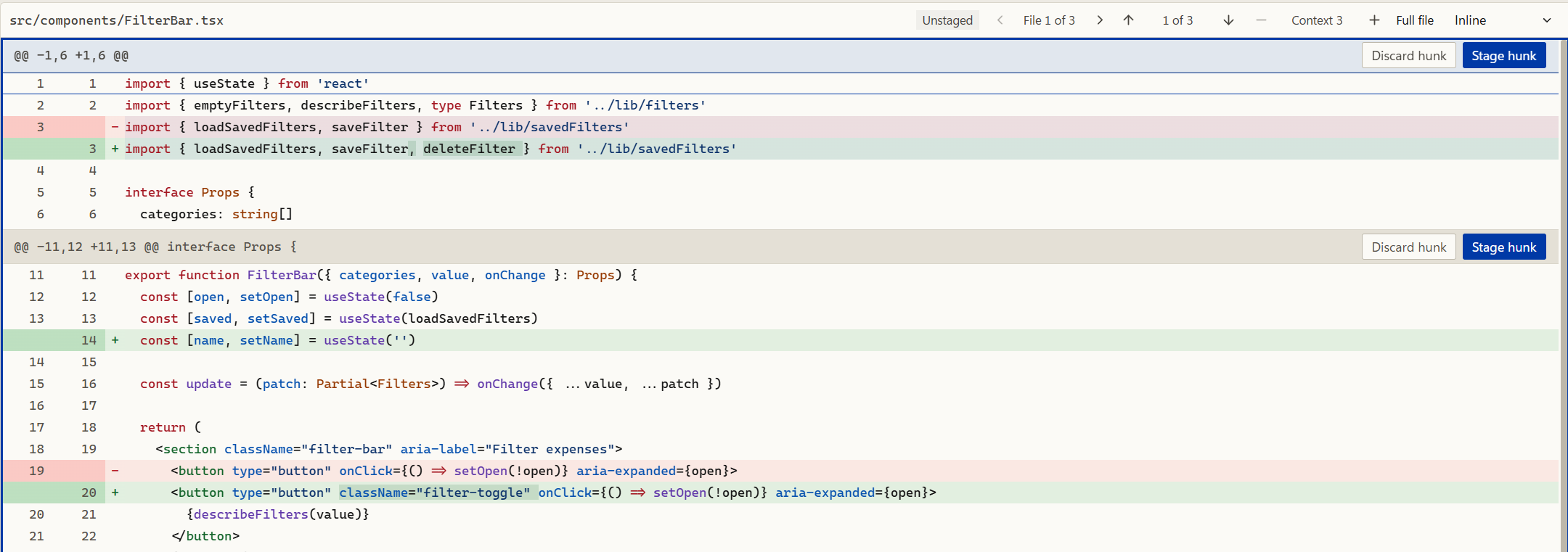
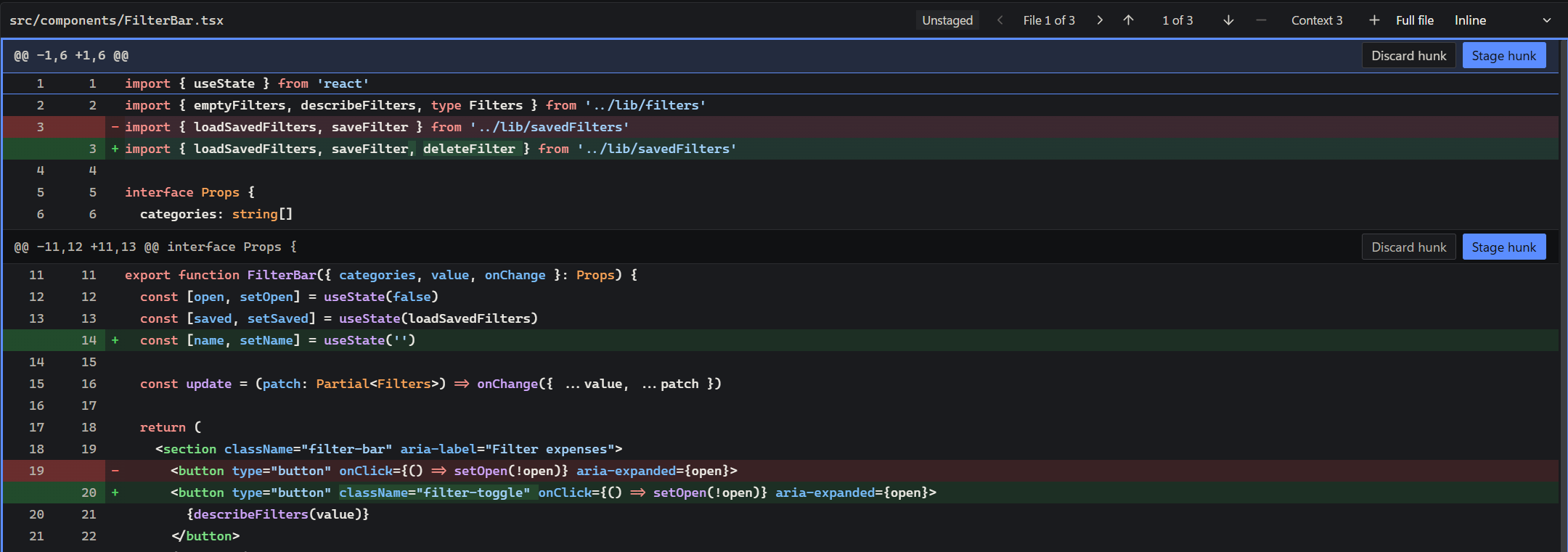
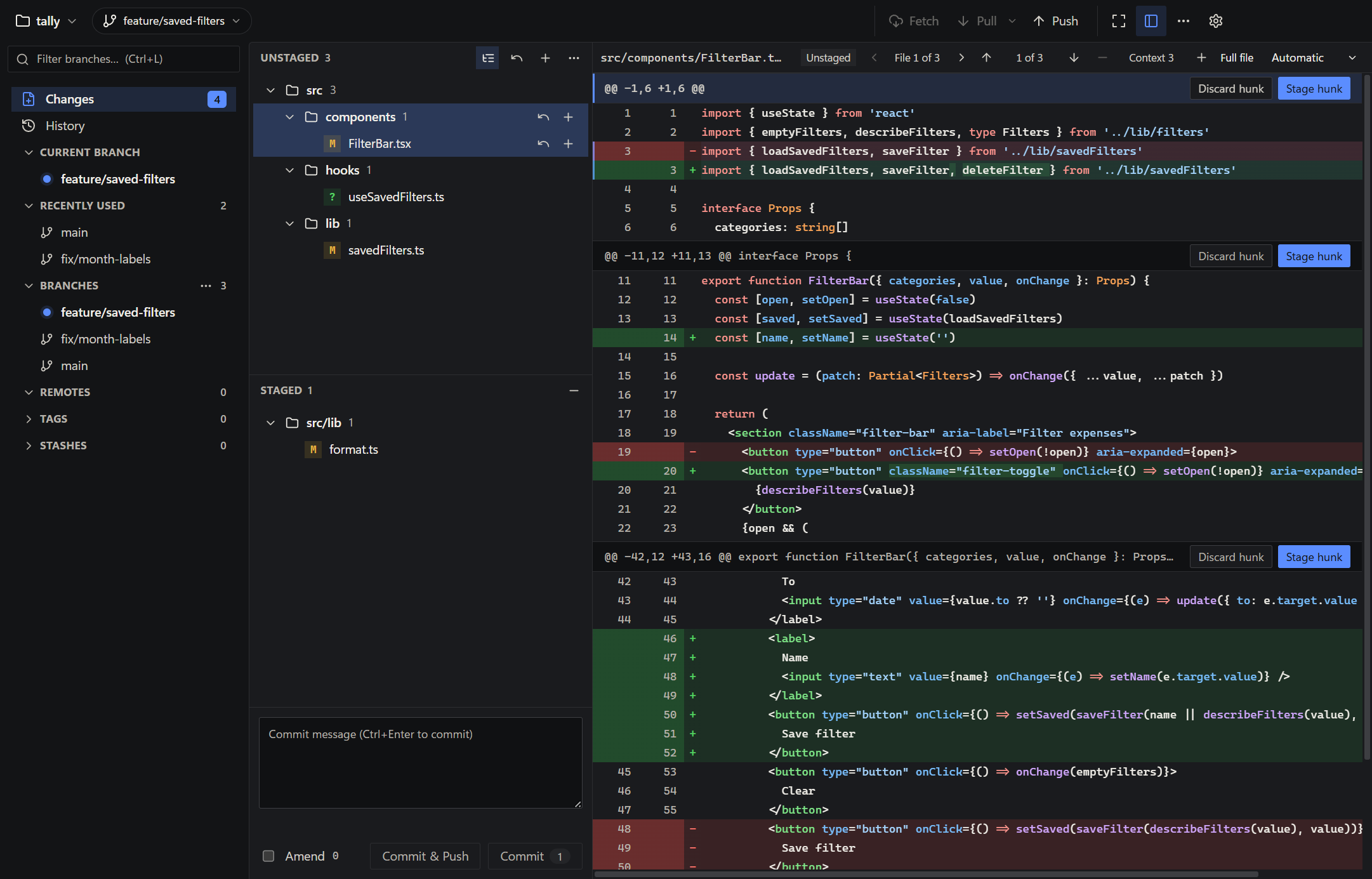
View additions and deletions in one column, or compare before and after in two columns. Both layouts include syntax colours and word-level change highlighting.

Switching keeps your place. Show more or less surrounding code with the context buttons in the diff header, or the whole file with the shortcut below.

  • CtrlShiftDSwitch layout
  • CtrlShiftWWhole file
A diff in the side by side layout, in Oak's light theme.
Side by side
A diff in the inline layout, in Oak's light theme.
Inline
Back to the map

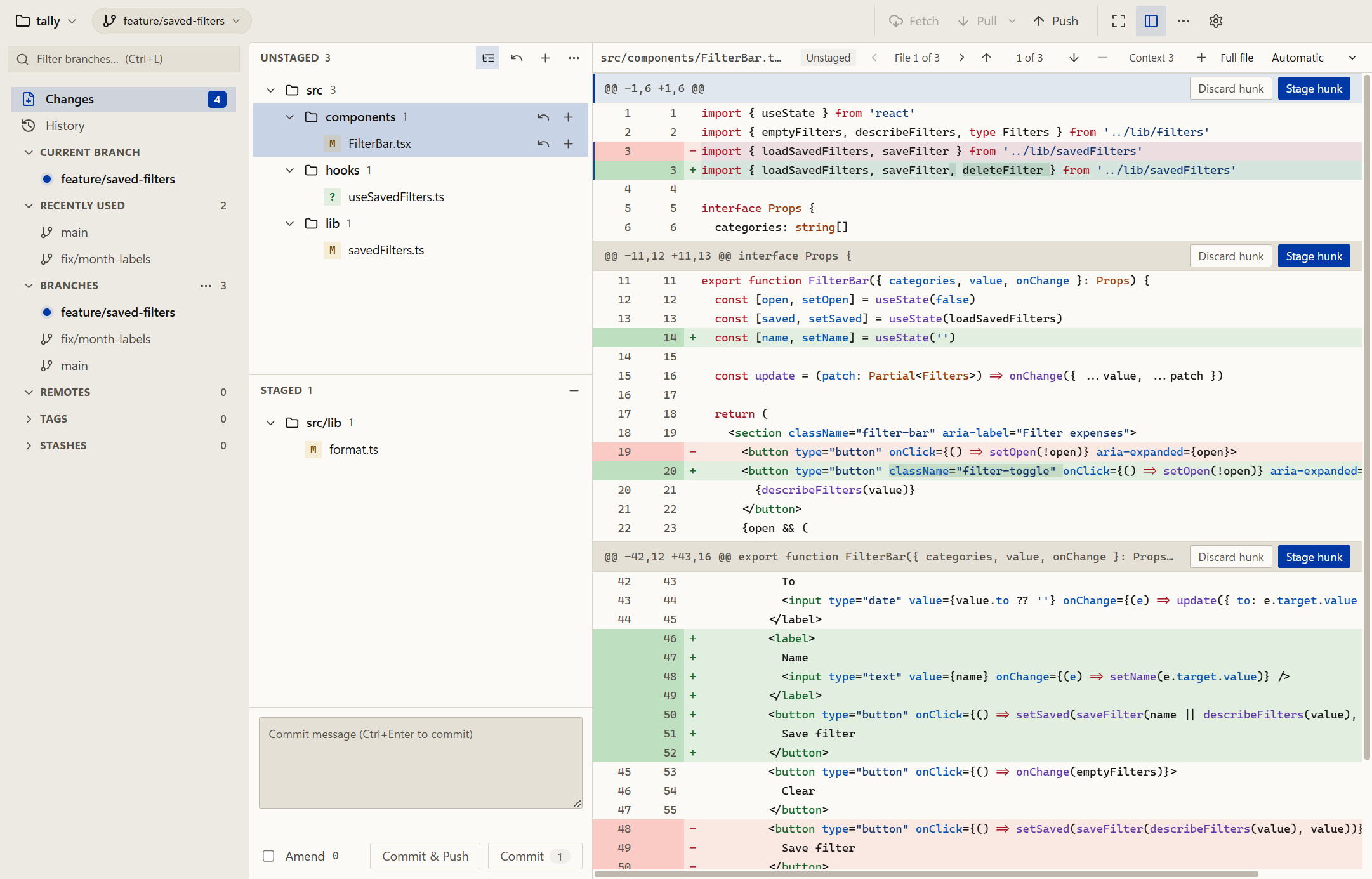
Changed files as a tree

Group changed files by folder to see where a change lands. It applies to Changes and to a commit's files in History, and your selection stays in place when you switch.

  • VList or tree
Oak's Changes view with files grouped by folder and a folder selected, in Oak's light theme.
Unstaged and staged files grouped by folder, with src/components selected.
Back to the map

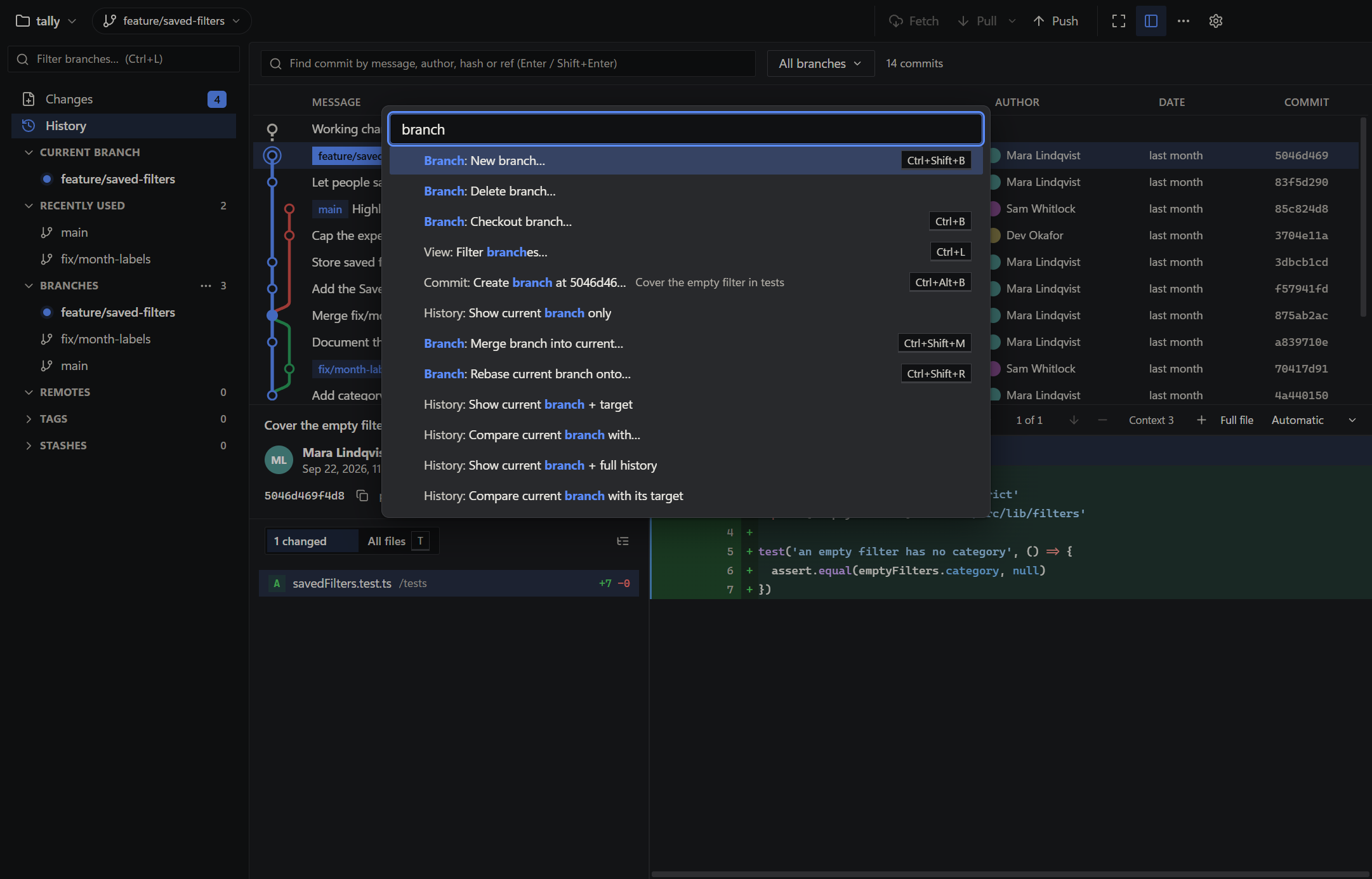
Command palette

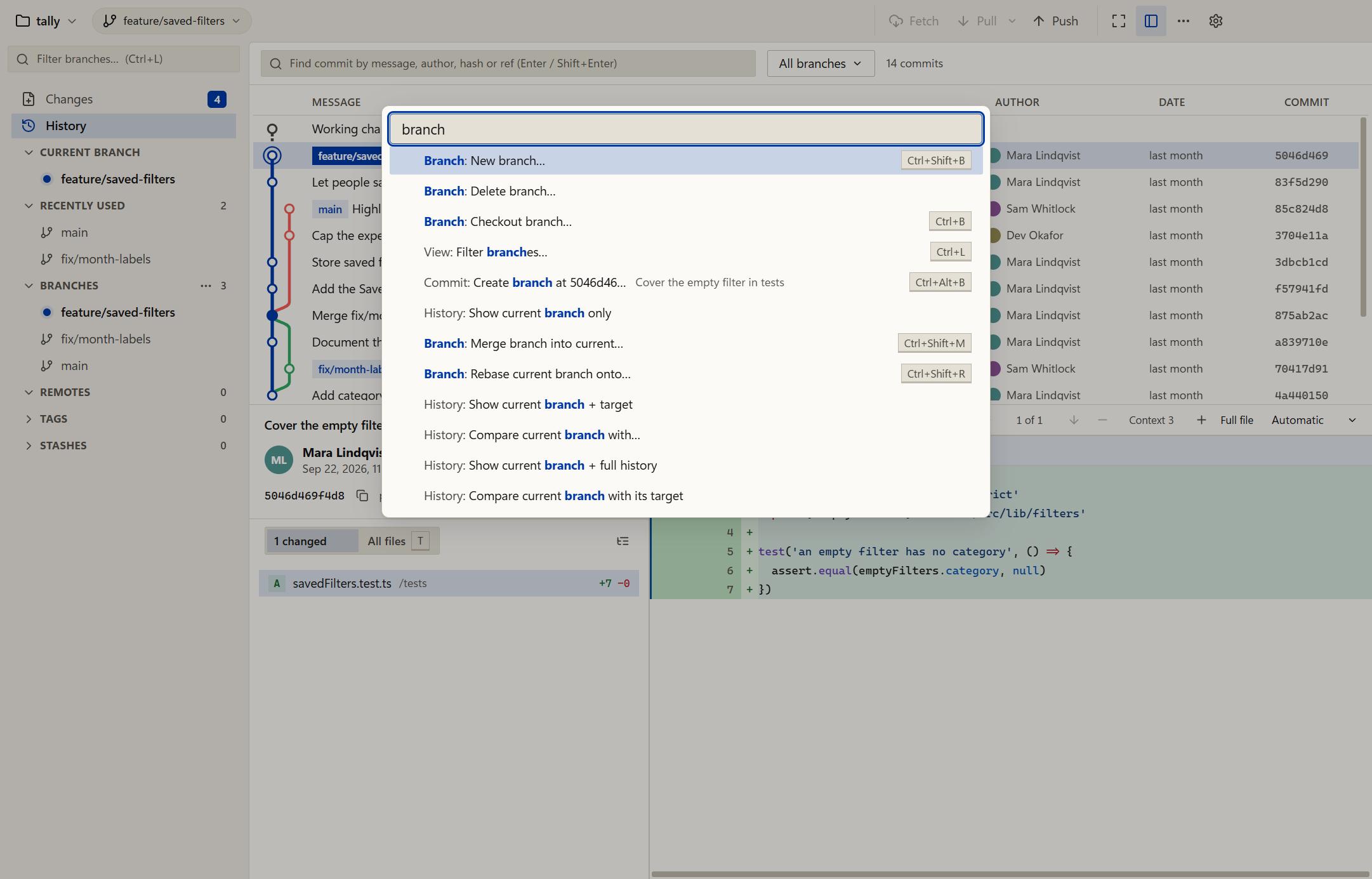
Type part of a command name, use the arrow keys to select a result and press Enter to run it.

The palette includes branch operations, comparisons, stash actions, diff controls, history scope, opening a branch's pull request page and preferences. Commands show their keyboard shortcuts where available.

  • CtrlShiftPOpen the palette
Oak's command palette showing matching commands and keyboard shortcuts, in Oak's light theme.
Search for an action without locating it in a menu.
Back to the map

Navigate by keyboard

Move between history, files and diffs using the keyboard. Tab steps through the controls inside a pane, such as the buttons in a file list. F6 switches panes.

  • CtrlFFind in a list, diff or file
  • Ctrl/All shortcuts
  • F6Switch panes
  1. Arrow keys move in lists, diffs and menus
  2. Slash or Ctrl F searches the focused list, a diff or a file preview; type :120 to go to a line
  3. Optional h, j, k and l keys work alongside the arrows
Back to the map

Give the diff the window

Expand the code area. Press F11 again, or Escape when nothing else is selected, to restore your layout, focus and pane sizes.

While reading a diff, Alt PageUp and Alt PageDown move between files. The toolbar's expand button does the same as F11.

  • F11Expand or restore
  • AltPageUp / PageDownPrevious or next file
Oak with the code area expanded to fill the window, in Oak's light theme.
After pressing F11, the diff fills the window.
Back to the map

Resize with the keyboard

Move the divider of the pane you are in. Dragging a divider still works.

  • ShiftAlt←→↑↓Move the nearest divider
  1. Focus a pane
  2. Press Shift Alt and an arrow key
  3. The nearest divider moves
Back to the map

Conflicts in your merge tool

When a merge stops with conflicts, Oak switches to Changes and shows a banner. Open the conflicted files one after another in the merge tool set in Preferences.

  1. A merge stops with conflicts, and a banner appears in Changes
  2. Open each conflicted file in your merge tool
  3. Marking a file resolved warns you if conflict markers remain
Back to the map

Uses your installed Git

Oak runs the Git CLI. It uses your existing credentials, configuration, hooks and Git LFS setup.

The working tree refreshes automatically when local files change and when you return to the window. Fetch checks for changes on the remote.

  1. Your credentials
  2. Your configuration
  3. Your hooks
  4. Your Git LFS setup

What may come next.

These are ideas on the list, not promises. They have no dates, and the order can change as I use Oak and hear from others.

Missing something you use every day? Open an issue.

Smoother conflicts

Say which side is ours and theirs, handle modify and delete conflicts, and bring Pull and Rebase conflicts into the same flow.

Interactive rebase

Reorder, squash, edit and drop commits from the history graph.

Pull request review

Fetch a pull request's branches and open the comparison in Oak. Comments and approvals would stay on the provider's website at first.

Diff readability

Hide whitespace and line-ending differences, and fold long unchanged regions so substantive edits stand out.

Open and preview more files

Preview images, PDFs and other safe files, and open anything else in its default app or show it in its folder.

Git command log

A list of every command Oak ran, with its output.

Signed installer

Code-sign the Windows installer so it no longer needs unblocking.

Get Oak.

Version 0.1.19 · Uses your installed Git

Windows

Windows 11 · x64 installer

Download for Windows

Requires Git on PATH.

The installer is not code-signed yet, so Windows may block the download or show a SmartScreen warning. Right-click the file, choose Properties and tick Unblock, or run Unblock-File .\Oak-Setup-0.1.19.exe in PowerShell. In SmartScreen, choose More info, then Run anyway.

Linux

x64 · Debian package or AppImage

Download for Linux

Experimental. Choose the .deb or the AppImage on the release page. The Debian package is smoke-tested on Ubuntu 24.04 and installs Git as a dependency. For AppImage, install Git and mark the downloaded file as executable.

macOS is untested; no download is available yet.